How to play WoW arena in browser: choose a project
To start, choose a project before selecting a class. “WoW arena browser” is a search expression rather than a single official product. WebWoW and Arena of Champions use different websites and do not share your characters or account recovery.
Use the game directory to compare their entry points. Our WebWoW page records its visible guest action. Our Arena of Champions page records a guest sign-in server error observed on November 2, 2026. Neither observation is a completed-match test.
Keep this guide open beside the original project. If you cannot reach a usable session, move to troubleshooting instead of treating a class build or a new registration as the solution.
Prepare your browser and input setup
- Use a current browser and a normal secure connection. Resolve browser or operating-system updates through their official update process.
- Start with a keyboard and mouse if available. Touch-only support is not verified in this guide.
- Run the browser compatibility check if you want to inspect common web features locally. Read the interpretation before changing settings.
- Close unnecessary heavy tabs if your device is struggling. A graphics test still cannot predict a stable game frame rate.
- Open the original project and wait for a specific result: entry form, game screen or readable error.
No step requires disabling certificate checks, installing an extension from an unknown site or handing this guide your game login. Browser-based games still download resources while loading and may need a substantial initial wait.
Attempt entry on the original project
WebWoW
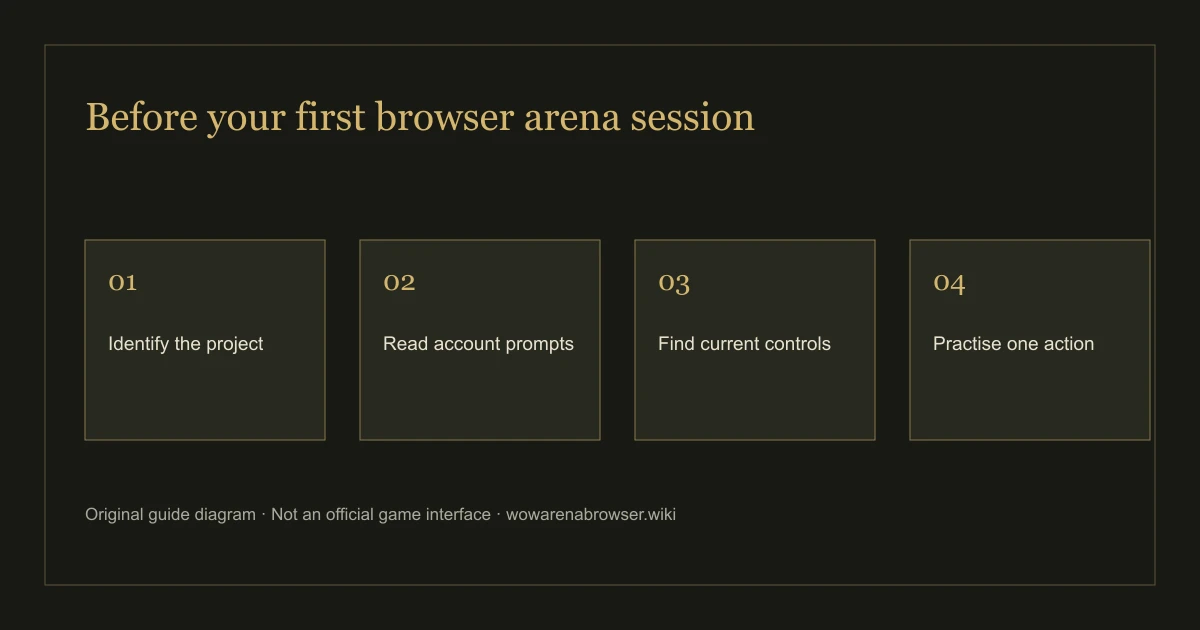
On webwow.world, wait for its PvP entry page and find Play as guest. Read the current on-screen prompts as it prepares the connection. A stage such as credentials, realm or world loading tells you more than a generic “not working” report. Check how the project saves progress before relying on a temporary session.
Arena of Champions
On arenaofchampions.live, the rendered entry screen provides Play as Guest and separate account options. Our guest request returned a server error. If you see the same response, stop the first-match sequence and try the original site later. Creating an account or installing the optional Windows client is not a verified fix from this guide.
Never reuse a Battle.net password just because the project uses familiar class names. Credentials for an independent game belong to that project, and its own recovery process applies.
Learn the current controls before you queue
Once you reach a working game session, look for the client’s own controls or settings panel. We intentionally do not supply guessed default keys. A familiar-looking game may use different targeting, camera and action bindings, and those bindings may change.
| Action to identify | What to check in the current client | Why it matters |
|---|---|---|
| Movement and camera | How to turn, reposition and stop | Know whether you can move without losing the target |
| Target selection | Enemy, ally and self targeting | A good action on the wrong target does not help |
| Main action | One repeatable attack or healing action | Begin with a button you understand |
| Defensive action | Its effect, conditions and cooldown | Avoid using every escape at once |
| Interrupt or control | Whether the chosen class actually has one | Do not assume another game’s ability exists here |
If the project offers practice or bot matches, read that mode’s description and use it to test basic inputs first. The presence and rules of practice modes must be checked in the live game.
Give your first practice session one goal
A manageable practice goal is more useful than copying a long rotation before you know the controls. Choose one observable action: keep the target selected while moving, recognize a defensive effect, or avoid losing track of your teammate. These are general learning tasks, not a claim about a specific game’s balance.
- Read the ability tooltip before trying it. Note its target and any condition that must be true.
- Try the action in a low-pressure mode if one exists. Confirm that the result matches what you read.
- Repeat once with movement or target selection added.
- After a match, write down one decision to improve. Do not turn a single loss into proof that a class is weak.
For team queues, agree on a simple target or role plan. The exact team size, rating rules and eligibility should come from the current queue prompt, not from an old video title.
Troubleshoot the stage that actually failed
- Page does not open: confirm the project address and read the browser message. Do not bypass a certificate warning.
- Entry page remains loading: note the loading text, try a current browser and check common features. A feature result is not proof of server health.
- Guest request gives a server error: preserve the wording, try later and consult project announcements.
- Game opens but input is unclear: return to the current controls panel. A phone needs a separate touch-input check.
- Progress disappears: use the project’s account and save documentation. This guide cannot recover a guest session.
See the FAQ for accounts, devices and downloads. To correct a step in this guide, use Contact with the game, page and visible problem. Remove private identifiers before sharing a screenshot.
Continue your next step: Find a game · Check your browser · Read the beginner guide · Browse the FAQ